
With the latest release adding specific groups to role permissions for user to see only certain other users was updated to improve the loading experience on the page. To now access the groups that you want assigned to users go to
1. Admin Menu
2. Users & Groups
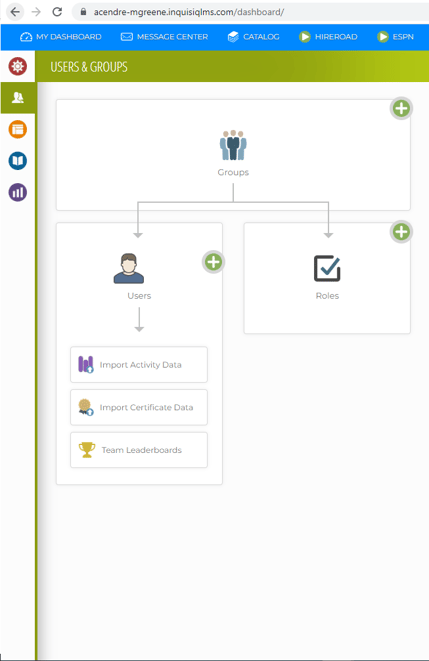
3. Roles
4. Create/Select Group that needs to be edited
5. In this example we are selecting User Manager role
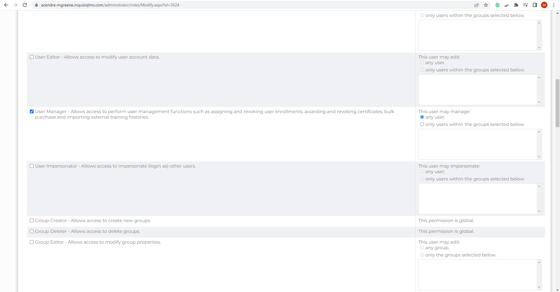
6. Select box next to Permission needing to be edited. If you want all groups to be assigned to this group select any user. Then scroll to the bottom of the page to save.
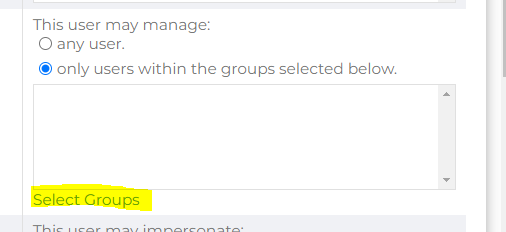
7. If only certain groups this user should be able to view for various reason then select box "only users within this group selected"

8. Then select "Select Groups"
9. A new pop up window will appear on the screen. Here is were the groups the user should have permission to view and manage will be available.
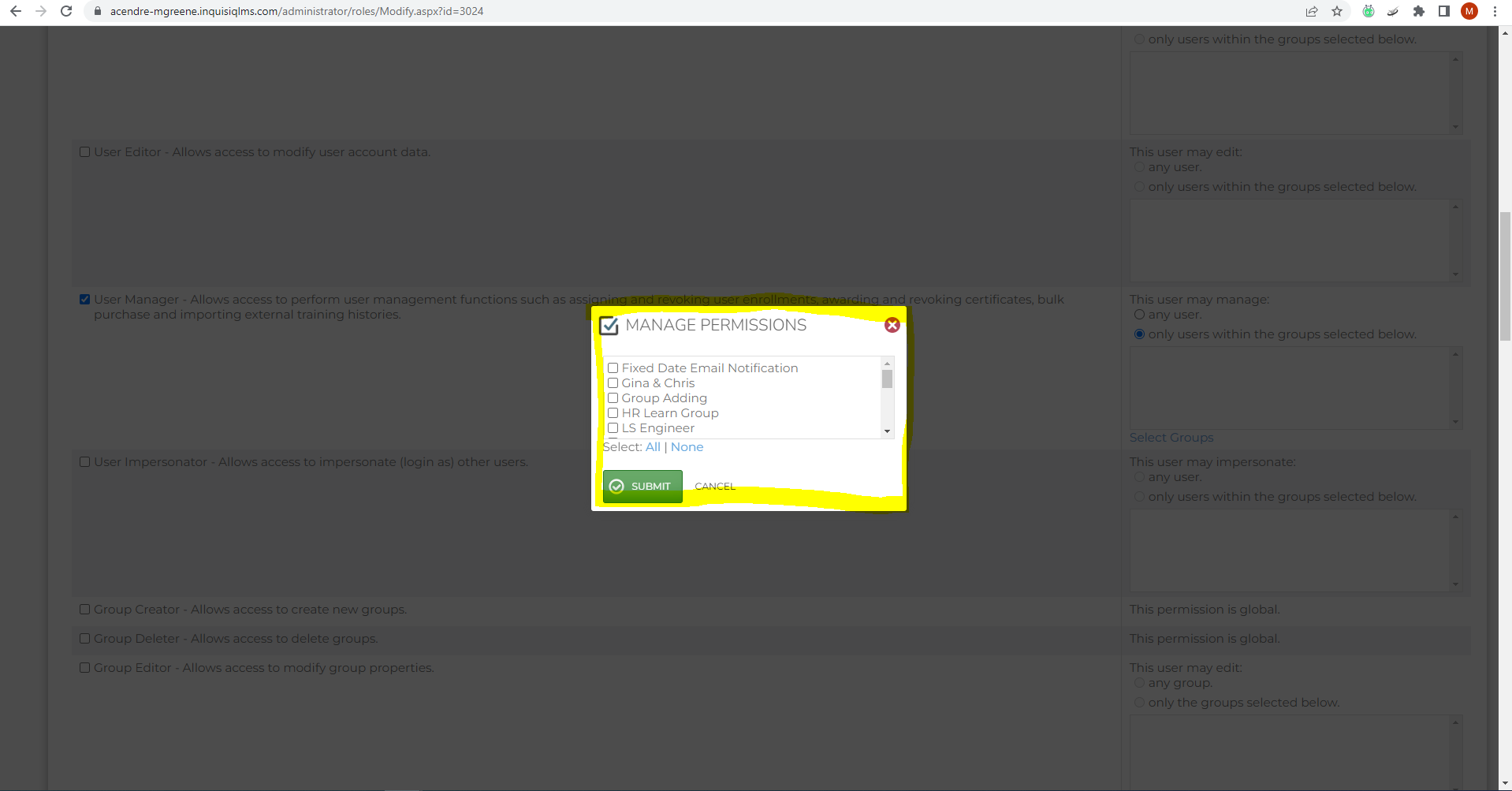
10. Select all groups that apply here for the user to view.