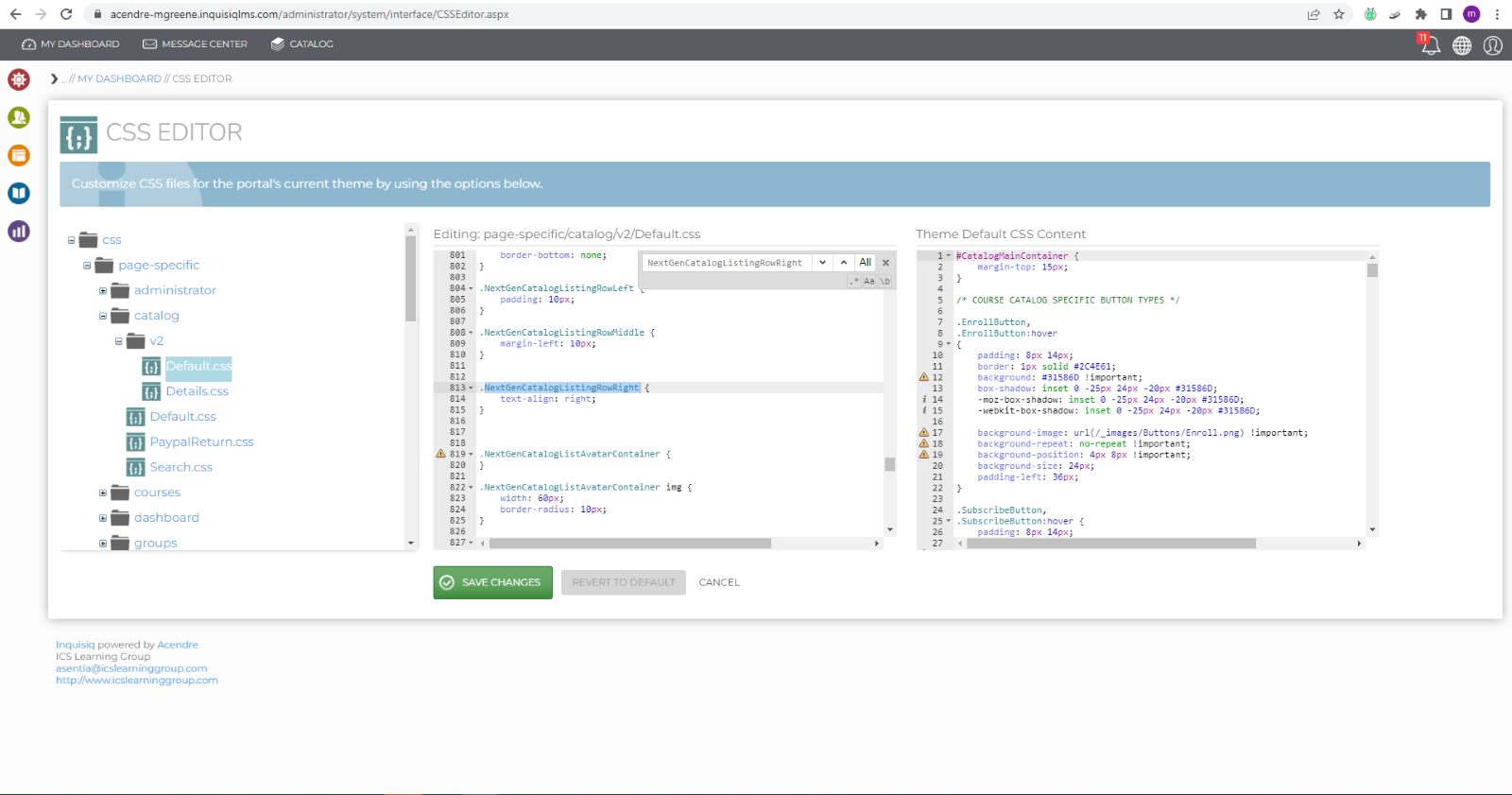
Looking to edit the CSS editor. Need to edit parts of the CSS Editor in the LMS. Would like to change parts of the LMS style and feel. How to find the page that part of the LMS need to be edited is. How does the CSS editor work? How do I find the pages that I want to edit.
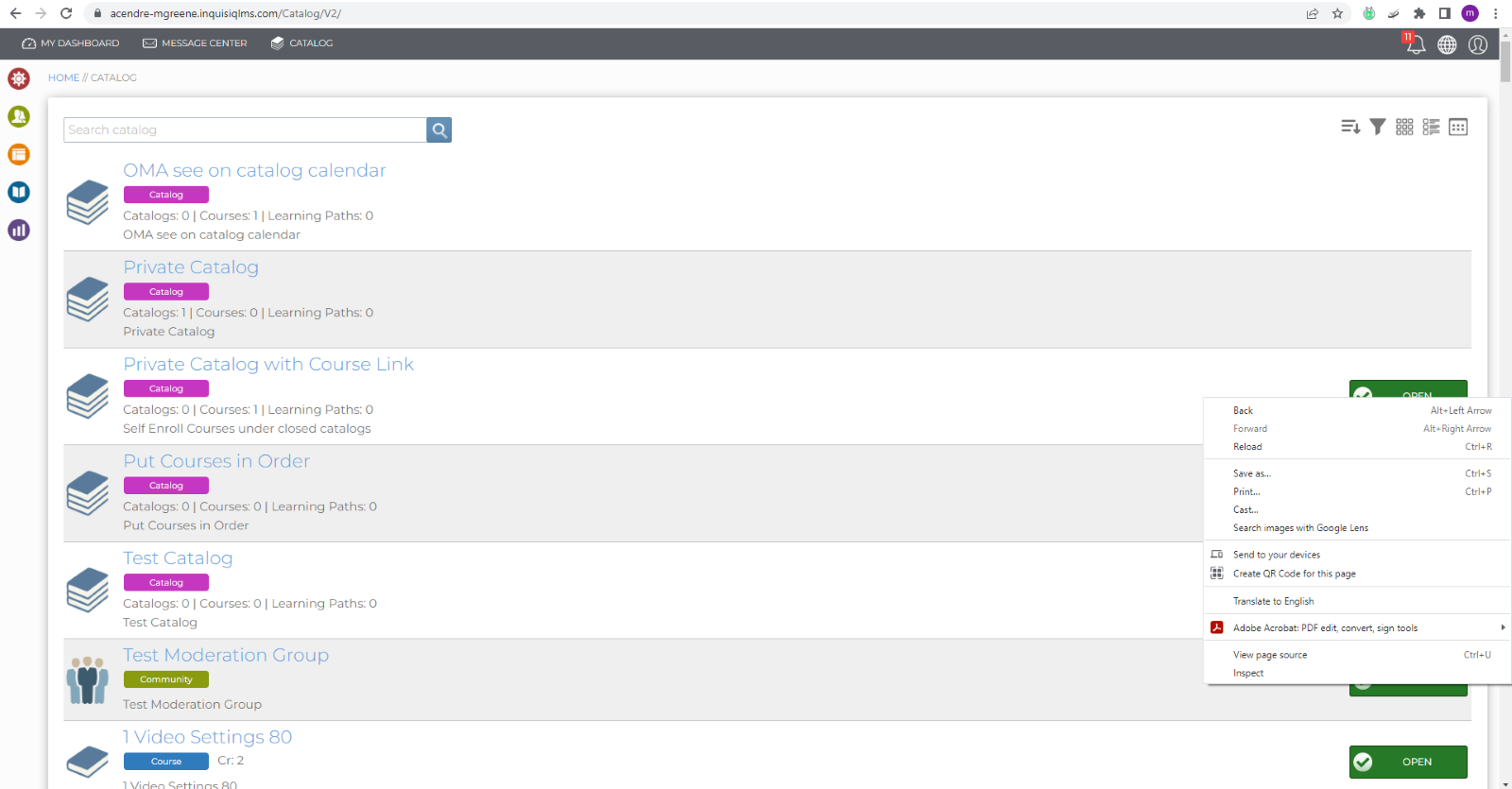
To edit the CSS editor. Right click on the screen to find the dev tools. Then click inspect. Double click on the part of the LMS page that is desired to be edited. In the dev tools it will tell you about the page with the highlighted section. The page is where your curser is will be highlighted by the gray.
The LMS has a feature called CSS Editor. It can be found by going to the Admin Menu > Interface and Layout > CSS Editor. Within the CSS editor an admin is allowed to edit pages style and function. In the example below the enroll button will be removed from the catalog page view for end users when you do the edits suggested below.
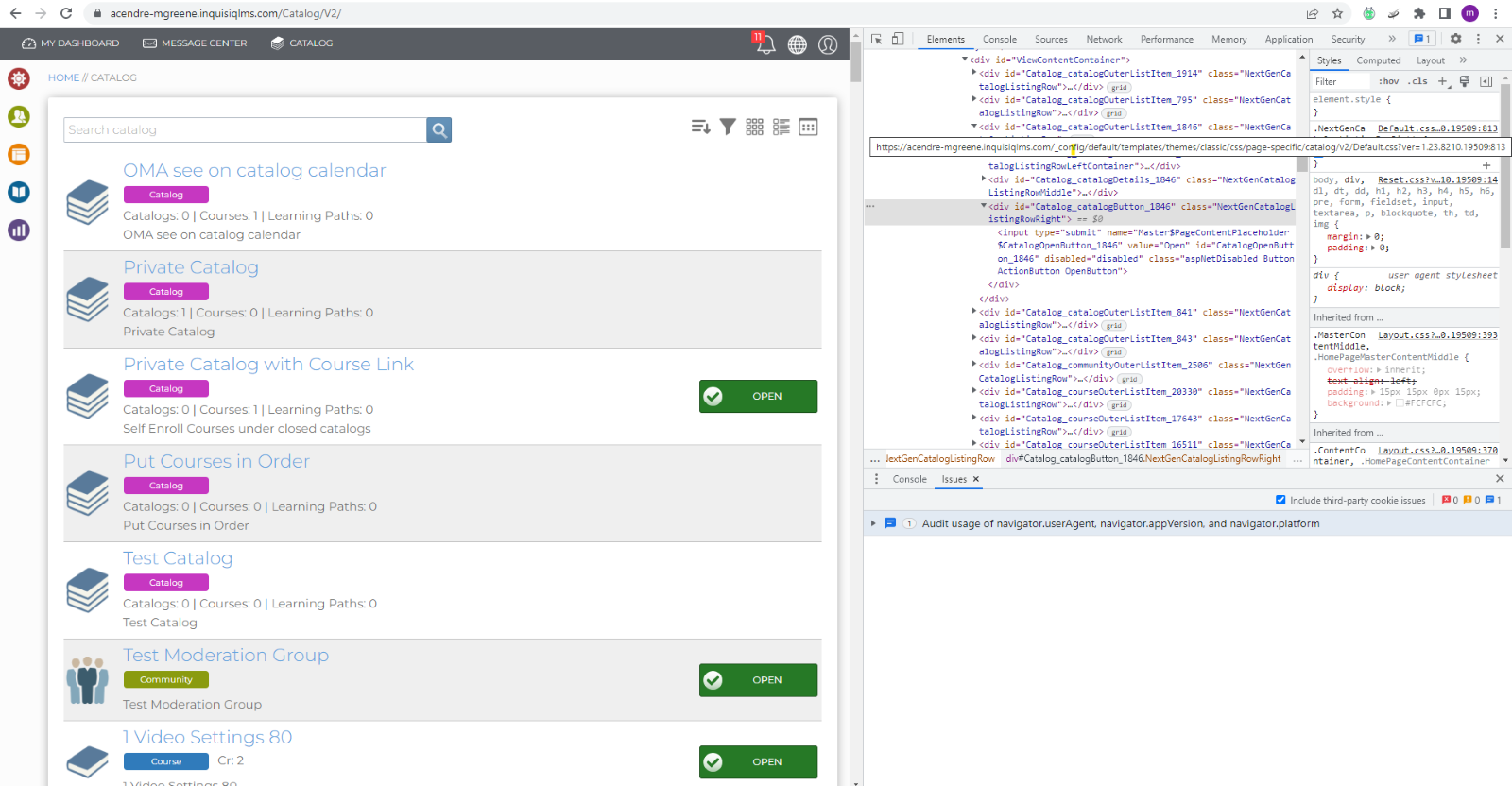
Here is an example of using CSS Editor as an admin to remove the enroll button from the catalog page for end user's view in the LMS.Steps to make this work:
- Get to the catalog view in non-system user admin account.
- Right click on the screen to open “Dev tools”.
- Scroll down on the pop up menu to “Inspect”.
- On LMS page highlight one of the enroll buttons that you desire to remove.
- Double click on nextgencaltalog within the element screen that is highlighted in gray.
- The gray highlighted line is where you go in CSS editor when you navigate back there via admin menu > interface & layout > css editor.
- The specific page you are looking for is here – NextGenCatalogListingRowRight.
- Now navigate to that page in the CSS editor.
- Once you find that you will use “Ctrl F” to find the – NextGenCatalogListingRowRight.
- You will use this code to change the enroll button to not be there any more
- Change test-align (display) change right to (none)