
HR Learn LMS Release 2.3 will be deployed on Wednesday, June 14, 2023 between 8:00pm - 12:00am EST and contains the enhancements below.
Enhancements
Azure AD/O365 OAuth SSO integration
We have added the ability to implement OAuth integration with Azure AD and Office 365. This will allow for a more streamlined process in integrating your LMS portal with your company’s Azure Active Directory or Office 365 for single sign-on with those identity management platforms.
System & UI Changes:
- Azure AD available as an option for “Add OAuth Provider” under System > Configuration > Login Setup
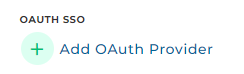
(Add OAuth Provider button)
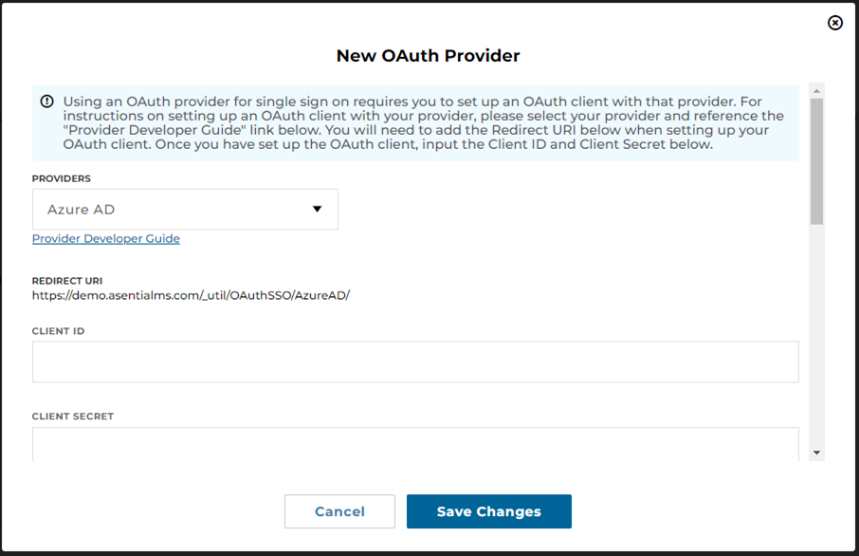
(Azure AD OAuth configuration screen)
- To configure, please refer to the Product Developer Guide link and have your Azure AD or O365 administrator work with you to configure the OAuth client for integration with the LMS.
- Once your OAuth client is established and you have your Client ID and Client Secret, you will be able to map Azure AD/O365 user profile fields to LMS user profile fields.
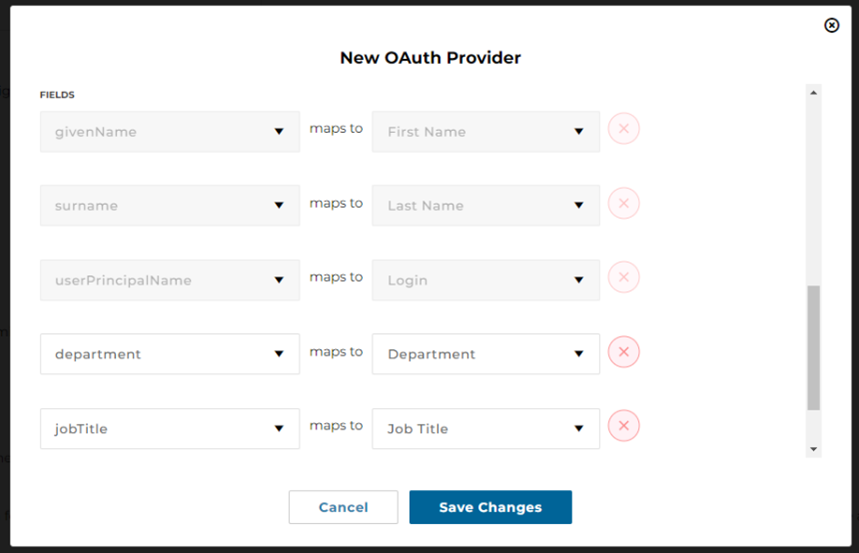
(Azure AD OAuth configuration screen with fields)
- Once Azure AD/O365 OAuth is configured, users will be able to sign into the LMS using their Azure AD/O365 credentials.

(Sign in with Azure AD button on login form)
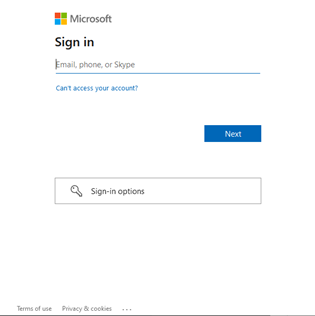
(Microsoft account login form)
Note(s):
- If you have an existing Azure AD integration to the LMS using SAML and wish to replace it with the new OAuth workflow, please contact support for consultation on moving your existing SAML workflow to OAuth.
- Set up of Azure AD and the OAuth client is a technical function that must be performed by your internal IT staff. The HR Learn staff is unable to configure the 3rd party (Azure AD/O365) components of this integration.
- This functionality is also available under the legacy UI.
Okta OAuth SSO integration
We have added the ability to implement OAuth integration with Okta. This will allow for a more streamlined process in integrating your LMS portal with your company’s Okta identity management platform for single sign-on.
System & UI Changes:
- Okta available as an option for “Add OAuth Provider” under System > Configuration > Login Setup
(Add OAuth Provider button)
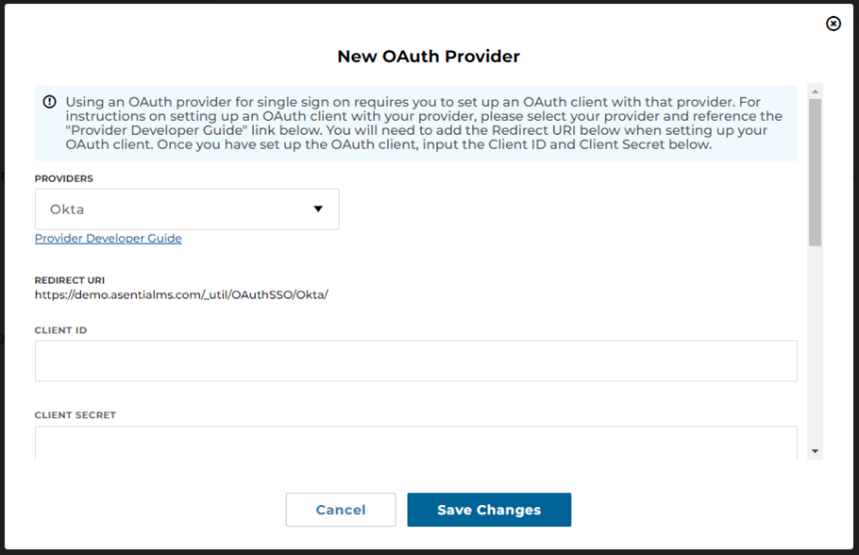
(Okta OAuth configuration screen)
- To configure, please refer to the Product Developer Guide link and have your Okta administrator work with you to configure the OAuth client for integration with the LMS.
- Once your OAuth client is established and you have your Client ID, Client Secret, and Okta Domain; you will be able to map Okta user profile fields to LMS user profile fields.
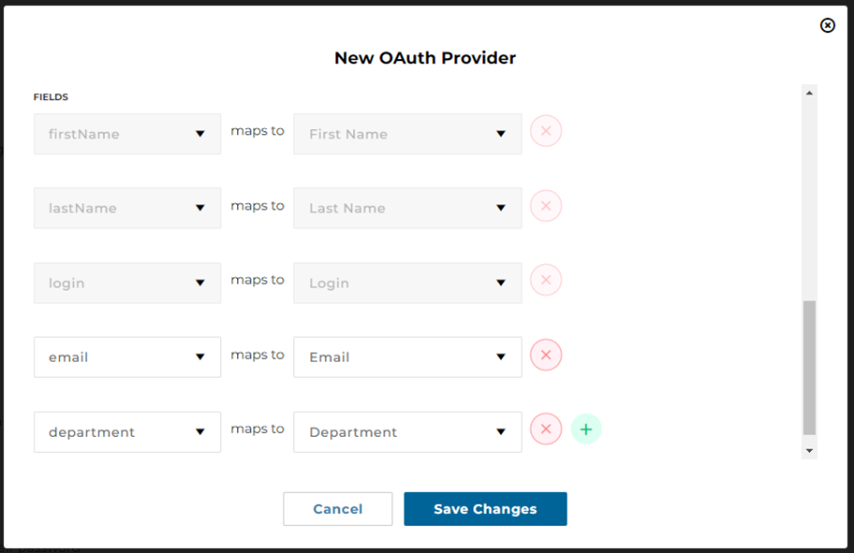
(Okta OAuth configuration screen with fields)
- Once Okta OAuth is configured, users will be able to sign into the LMS using their Okta credentials.

(Sign in with Okta button on login form)
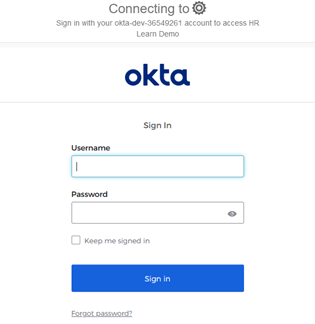
(Okta account login form)
Note(s):
- If you have an existing Active Directory or LDAP integration to the LMS using SAML and wish to replace it with the new OAuth workflow using Okta, please contact support for consultation on moving your existing SAML workflow to OAuth.
- Set up of Okta and the OAuth client is a technical function that must be performed by your internal IT staff. The HR Learn staff is unable to configure the 3rd party (Okta) components of this integration.
- This functionality is also available under the legacy UI.
Customization of Password Reset and Username Recovery emails
We have introduced the ability for LMS administrators to customize the content of their portal’s Password Reset and Username Recovery emails. This will allow for those emails to be more branded to your company.
System & UI Changes:
- The system event type notifications for “Password Reset Email” and “Username Recovery Email” are available for customization under the email notification listing in System > Email Notifications.
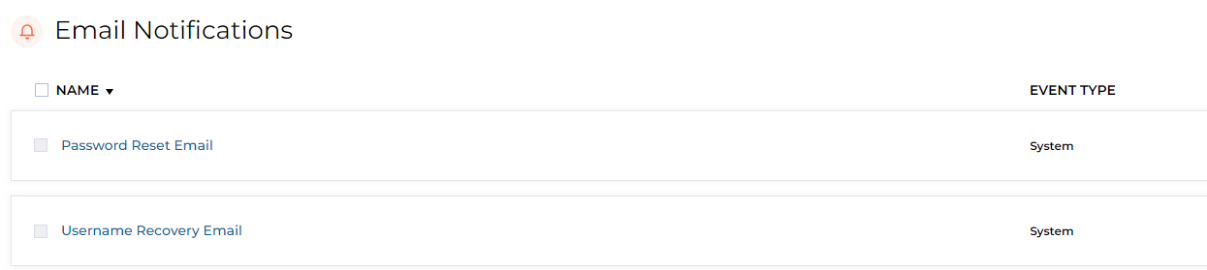
(“Password Reset Email” and “Username Recovery Email” item listing)
- When clicking one of these emails, you will be brought to the edit screen where you can customize the email’s subject, type (plain text or HTML), and body. Note that these are the only properties that can be customized for these system-driven email notifications.
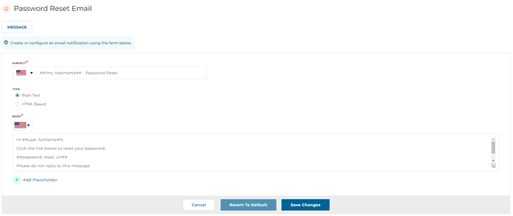
(“Password Reset Email” edit screen)
- You may change these email notifications back to the system default configuration by clicking the “Revert to Default” button when editing the email notification.
Note(s):
- For the “Password Reset Email” notification, you must include the ##password_reset_url## placeholder in the email body when customizing.
- For the “Username Recovery Email” notification, you must include the ##user_login## placeholder in the email body when customizing.
- This functionality is also available under the legacy UI.
Option to reset passwords based on security questions
We have introduced the ability for LMS administrators to allow users to reset passwords by answering security questions. This allows for an alternative method to reset a password without relying on password reset emails.
System & UI Changes:
- The option to “Require the user to answer security questions to reset their password” has been added to the System > Configuration > Login Setup section.
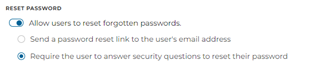
(Reset password options)
- When this option is set, users will be required to answer security questions to reset their password.
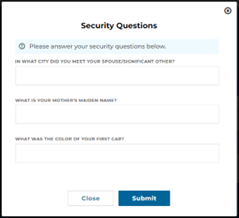
(Security questions prompt for password reset)
- Once the user has answered the security questions correctly, they will be directed to the password reset screen.
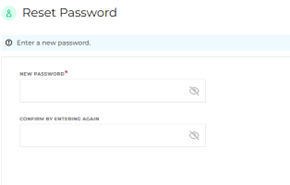
(Password reset screen)
- When switching to this password reset method from the system default password reset method, users will be forced to pick security questions and answers upon their next login. Users needing to reset their password prior to setting up their security questions will be defaulted to the email-based password reset.
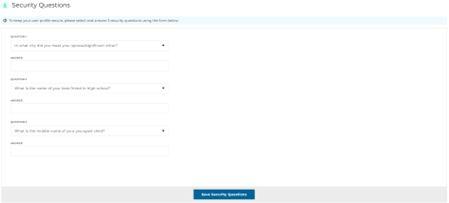
(User prompt to set security questions)
- A user may change their security questions and answers at any time by going to their My Profile screen and editing from the Security Questions tab.
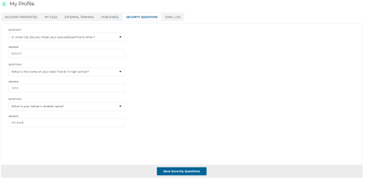
(My profile screen – Security Questions)
Note(s):
- This functionality is also available under the legacy UI.
Ability for users to view past email notifications in UI
We have introduced the ability for users to view email notifications that have been sent to them from the UI.
System & UI Changes:
- Users can now go to their My Profile screen and click the Email Log tab to view email notifications that have been sent to them.
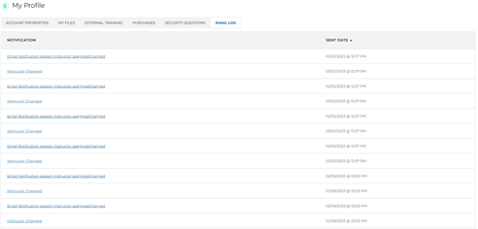
(My profile screen – Email Log)
- Clicking on a notification will show the contents of the email that was sent to the user.
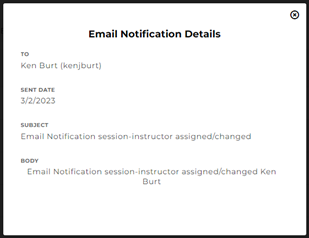
(Email notification details)
Note(s):
- This functionality is also available under the legacy UI.
Other minor feature additions
We have introduced the ability for LMS administrators to customize the content of their portal’s Password Reset and Username Recovery emails. This will allow for those emails to be more branded to your company.
- Modified the default email-based password reset to send a tokenized link to reset the user’s password, as opposed to resetting and emailing a temporary password.
- Modified the back-end process that assigns group enrollments to users to be more efficient, thus improving performance of that functionality.
- Modified the aggregation of enrollment statistics and leaderboard data to enhance performance of the screens rendering that data.
- Added the “user online” indicator that is available in the legacy UI to the new UI.
Bug Fixes
- Corrected an issue with expiring access tokens for Go1 integration.
- Corrected an issue with pagination in the ILT Roster Management widget in the legacy UI.
- Corrected an issue preventing an ILT organizer from creating a session that begins at the same time another one ends for the organizer.
- Corrected an HTML rendering issue for discussion board messages that are posted through the WYSIWYG editor.
- Corrected an issue preventing the “Purchase Request Submitted” email notification from being sent to Approver(s).
- Corrected an issue where names of completed courses were not being reflected accurately on the enrollment listing page if the course name were changed after enrollment completion.
- Corrected an issue where the time zone of a report subscription was not accurately reflected in the UI.
- Corrected an issue preventing task proctoring from the new UI when the task’s title contains single quote characters.
- Corrected an issue with validation of file extensions for uploads being case-sensitive in the new UI.
- Corrected an issue with re-submission of task module files.
- Corrected an issue with ILT session time zones.
- Corrected an issue allowing users to register for an ILT session that occurred in the past.
- Corrected an issue with the WYSIWYG editor’s “add link” functionality when building a quiz or survey.
- Corrected an issue preventing the editing of some ruleset rules.