
This article provides an overview of configuring certifications (which are different and more complicated than our standard certificates) with initial and renewal requirements.
Create a New Certification
Click to expand the “Learning Assets” menu and then click “Certifications.”
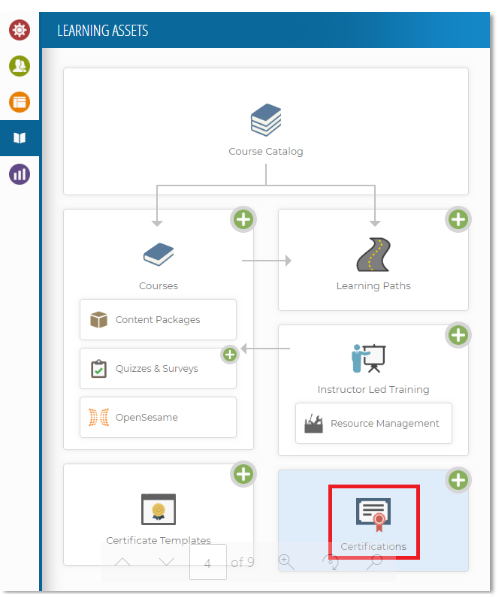
Click “New Certification”, complete the forms in the Properties, Initial and Renewal tabs, then click “Save Changes”.
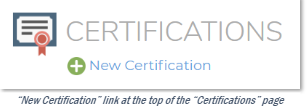
Properties Tab:
Title – The name of the certification.
Description – Plain text only box for a brief description of the certification.
Initial Award Expiration – The amount of time until the certification expires after it is initially awarded.
Renewal Expiration – The amount of time until the certification expires after it is renewed.
Accrediting Organization – Contact information about the organization issuing the certification.
Search Tags – Any words you would like associated with the certification for users to be able to search for it in the search bar on the Certifications page.
Note: Any part of the Description can also be used when searching for a certification.
Attached Courses – Courses that will be used to fulfill the requirements of the certification. Click “Attach Course(s)” to add courses that can be selected as part of a segment requirement of a unit within the Initial or Renewal tabs.
Initial Tab:
Use this form to set the initial requirements for the certification.
- Create at least one unit for the certification by clicking the
 button next to “Unit(s).” Give each unit a title and description.
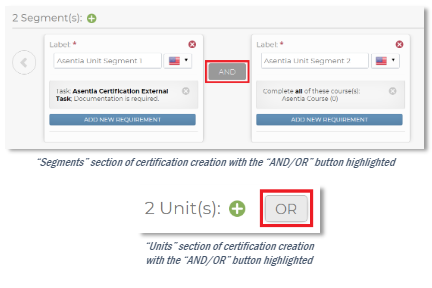
 - Create at least one segment for each unit by clicking the button next to “Segment(s).” Give each segment a label.
- Add at least one requirement for each segment you create. You can base the completion of the segment on the completion of specific course(s), a certain number of credits, or an external task.
When adding several segments to a unit or several units to a certification, you have the option of choosing whether all parts or only one part must be completed by clicking the “AND” or “OR” buttons, respectively.
Renewal Tab
Use this tab to set the renewal requirements for the certification.
The Initial requirements for a certification can be used for the Renewal requirements when the “Use Initial Requirements” in the Renewal tab is checked. Otherwise, different requirements can be set in the same way the Initial requirements were set in the “Initial” tab.
Note: The completion data of the Initial requirements of the certification are kept in the system. Renewal data will ONLY reflect the most recent Renewal completion. Data from past Renewal completions gets wiped with every new Renewal completion. Keep in mind that the system will still be tracking ALL course completions, so that data will still exist in the system, regardless of the certification Renewal data.
Note: A user cannot gain completion of Renewal requirements until after the start of the renewal period. Otherwise, users could complete years of renewals in one short period of time, which entirely defeats the purpose of keeping up with a certification.
Certification Configuration
All certifications are listed on the “Certifications” page:

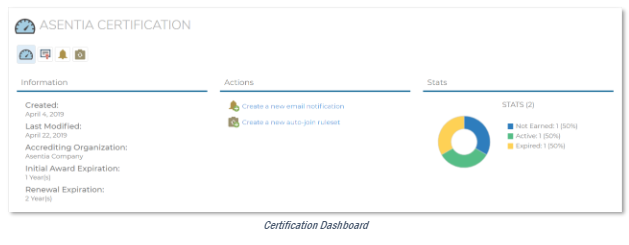
Clicking on the name of a certification will bring up the “Certification Dashboard”.
Certification Dashboard View a summary of the certification’s information and stats on the Certification Dashboard. You can also create new email notifications and auto-join rulesets for the certification from the shortcuts listed under “Actions”.
Certification Properties
To view and modify certification properties, initial and renewal requirements set during certification creation, click the  button for the certification in the list on the “Certifications” page, or click the
  button from the “Certification Dashboard”.
Email Notifications
Click the “Create a new email notification” shortcut listed under “Actions” on the “Certification Dashboard” page to set up an email notification related to an event linked to that particular certification. You can also create email notifications for ALL certifications in the “Email Notifications” section of the System menu.
Note: The system prioritizes certification email notifications over system email notifications. If there is an email notification in the system and one in a certification’s settings that both trigger upon the same event (i.e. certification enrollment, certification awarding, etc), the system will ONLY send the certification email notification.
To view all email notifications for a certification, navigate to the “Email Notifications” page by clicking the  button for the certification in the list on the “Certifications” page, or by clicking the
  button from the “Certification Dashboard”.
Auto-Join Rules
Give users access to the certification by clicking “Create a new auto-join ruleset” from the “Certification Dashboard” to create a ruleset that will automatically join users to the certification based on the parameters you choose.
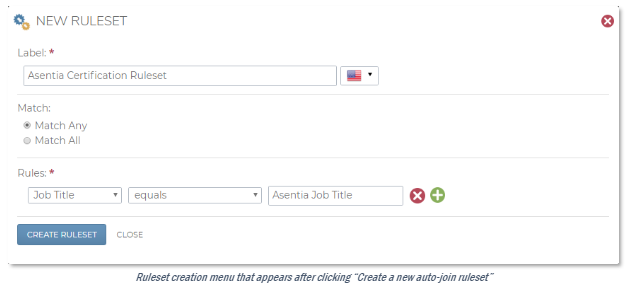
Note: Joining a user to a certification DOES NOT enroll them in the courses they are required to take to receive the certification. Users will need to either self-enroll in the courses from the catalog or be enrolled into the required courses through enrollment rulesets.
To view all rulesets for a certification, navigate to the “Auto-Join Rules” page by clicking the  button for the certification in the list on the “Certifications” page, or by clicking the
  button from the “Certification Dashboard”.