
This article details the process of allowing pop-ups in Safari on your iPhone, iPad, and Mac. It seems like we put so much effort into blocking things like pop-ups and ads when we’re browsing the web that we forget about sites that actually use pop-ups for good reason. It could be a shopping site where you get a confirmation, a CMS where you can use tools, or a social site where you log in.
In Safari, you can allow pop-ups globally, and on Mac, you can allow them just for those specific sites you want.
About pop-up ads and windows in Safari
How to allow pop-ups in Safari on iPhone, iPad and Mac
Allow pop-ups in Safari on iPhone and iPad
On iPhone and iPad, you cannot currently specify which sites you want to allow pop-ups for. It’s a global setting that you can enable or disable. The best option to allow pop-ups for a particular site is to turn off the setting, visit the website you want to see the pop-ups for, and then turn the setting back on.
Open Settings and select Safari. Turn off the toggle for Block Pop-ups.
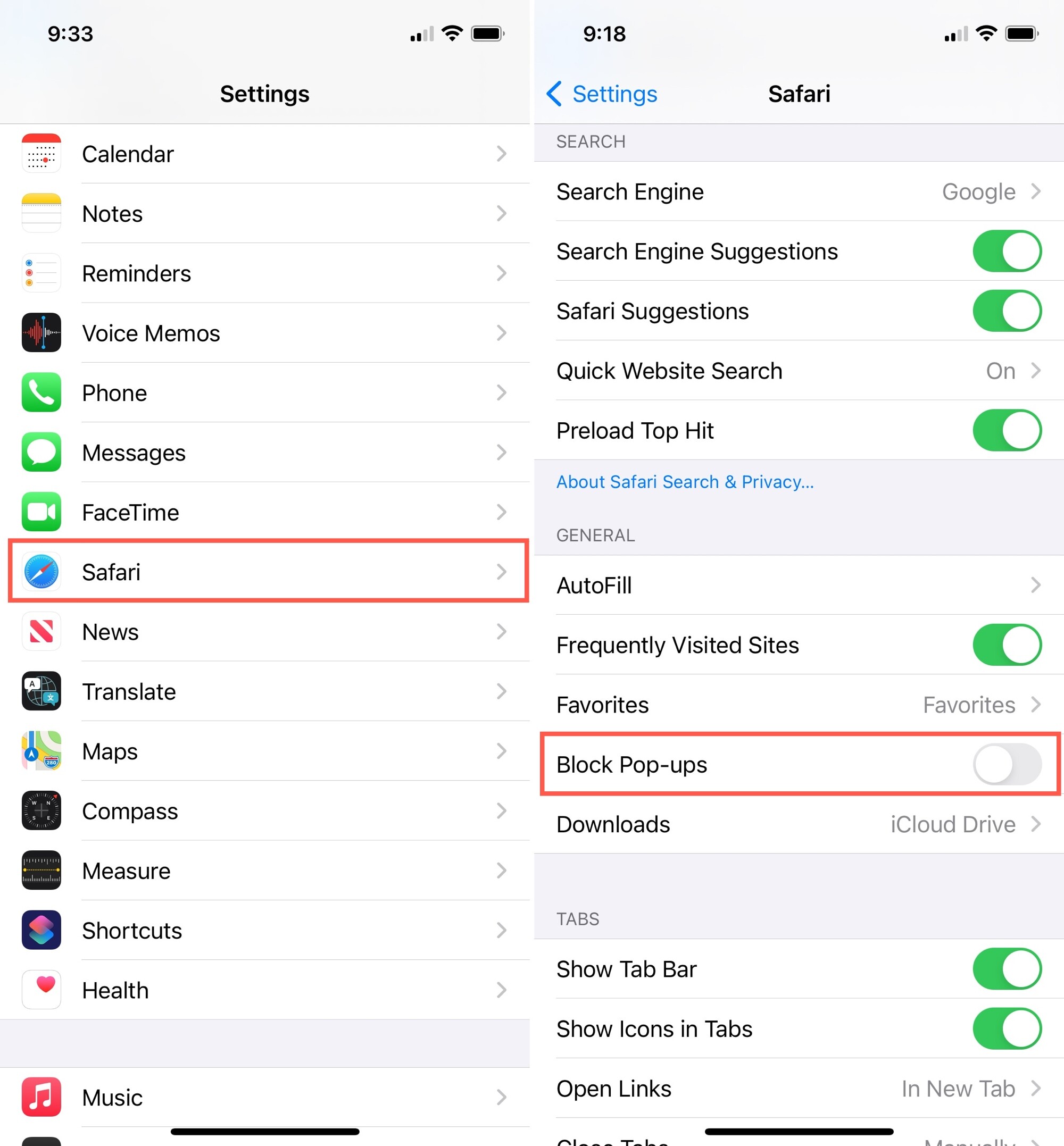
When you finish visiting the site whose pop-ups you want to see, you should strongly consider turning the Block Pop-ups setting back on. Otherwise, you could end up inundated with ads or even unsafe pop-up on your device.
Related: How to increase privacy in Safari on iPhone and iPad