
There are two ways to create email notifications.
- At the System level – This is a global level event trigger meaning that any learning asset and user, group or role that meets the requirements will have an email notification sent out to the specified trigger of the event.
- At the Activity Level – This is only at the specified learning asset (such as course, ILT, learning event or certification) level meaning this email notification will only be sent out to the specified trigger of the event.
Email Notification at the System level:
- Click on Admin Menu.
- Click on System.
- Click on Email Notifications.
- Click on New Notifications.
- Fill out the required fields with the red asterisk.
- Give the email notification a name. The end users will not see this name, it is just for the admins.
- Set the notification to active or inactive.
- Active status on the notification means that it is in use and will be sent out when requirements are met.
- Inactive status on the notification means that it is not in use and will not be sent out when requirements are met.
- On the Event/Recipient field, this allows options to be set so the system knows what events will trigger the notification to be sent out.
- These are the notifications that will be triggered by what event is happening.
- These are the options choices to trigger to trigger the specified event:
-
- User – this will trigger notifications based on a user event.
- Course – this will trigger notifications based on a course event.
- Module – this will trigger notifications based on a module event.
- OJT – this will trigger notifications based on an OJT event.
- Session – this will trigger notifications based on a session event.
- Learning Path – this will trigger notifications based on a Learning Path.
- Certificate – this will trigger notifications based on a certificate.
- Purchase – this will trigger notifications based on a purchase.
- Discussion – this will trigger notifications based on a discussion.
-
- These are the options for those who will receive this specific event:
- System Administrator
- User
- Supervisor
- Specific email – this can be outside of the LMS (Learning Management System)
- These are the options choices to trigger to trigger the specified event:
- These are the notifications that will be triggered by what event is happening.
- From/Reply to – this field allows for an email address to be visible for users to respond to
- This can be changed to specific email addresses, but our team will need a ticket submitted to outfit the changed address to something other than no-reply.
- Here is an example of an email will look for your users when they receive it:
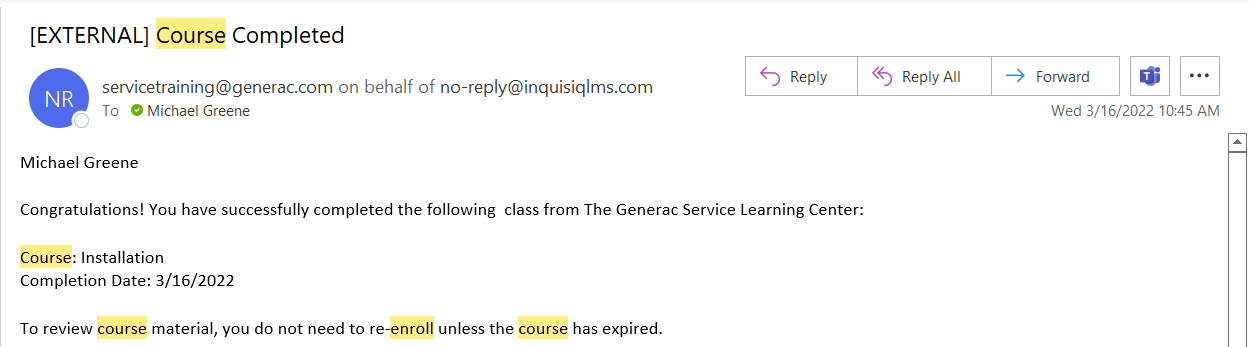
- With certain Event/Recipient notifications selected such as “Course Start” system gives the option to have “Send” time parameters set up. This allows reminder email notifications to be sent out ‘X’ amount of time before/after the specified event is about to happen. Click on the box under “Send”. There are 2 options to choose from.
- Have notification fire when the selected event occurs.
- Select amount of time before/after the event occurs.
- Month
- Week
- Days
- Hours
- On the message tab, create the message going out to the user. Placeholders are used to tell the LMS (Learning Management System) what specific information should be included and gathered in when the event has been triggered.