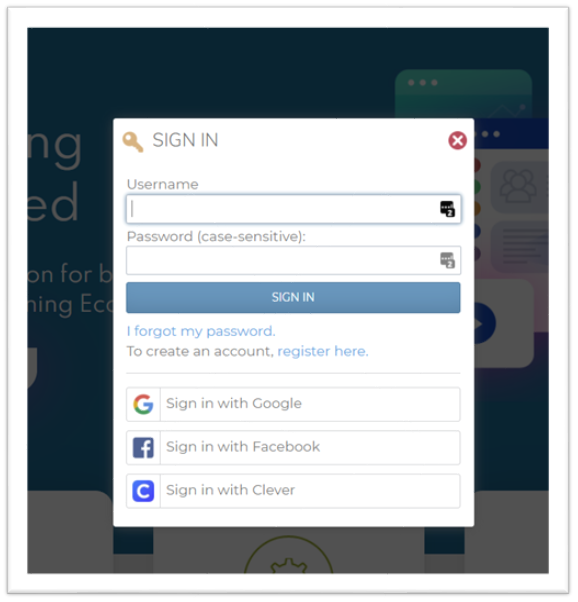
Learners can single sign-on and register with their Clever account if the setting is turned on for your portal. By integrating your HR Learn learning platform with Clever, you can bind your HR Learn user profiles with their corresponding Clever accounts. This way, every user inside your platform can sign into their HR Learn platform without needing to manually enter the credentials. This manual will show you the integration in both your HR Learn learning platform as well as from Clever side.
- Firstly, navigate to your HR Learn portal -> System -> Configuration -> Login Setup page and you will see the new SSO option.
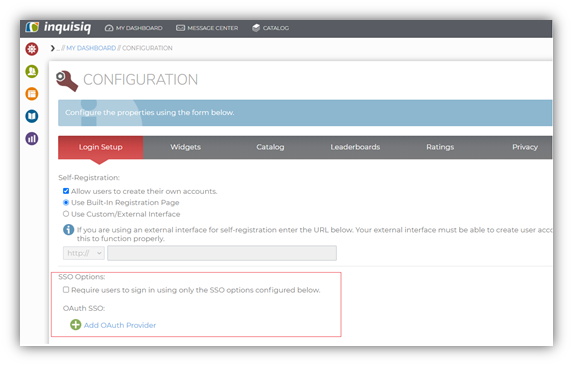
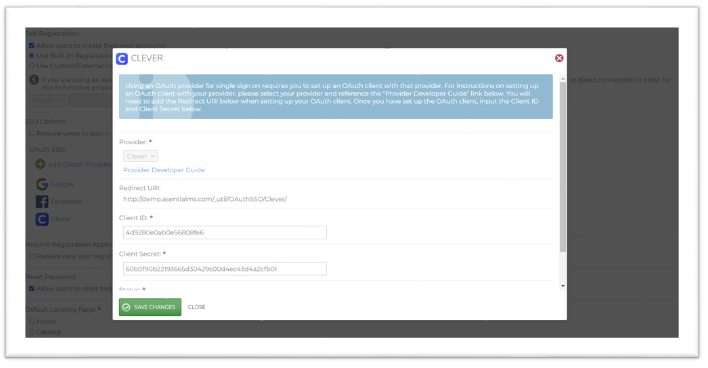
- When you click on ‘Add OAuth Provider’, the following window will pop-up, where you can choose the provider as Clever.
- After selecting Clever as the SSO option, click on ‘Provider Developer Guide’ hyperlink to activate the integration. This link explains the steps which need to be followed to activate the SSO set-up. Create a log in or login with an existing id here - https://apps.clever.com/signup
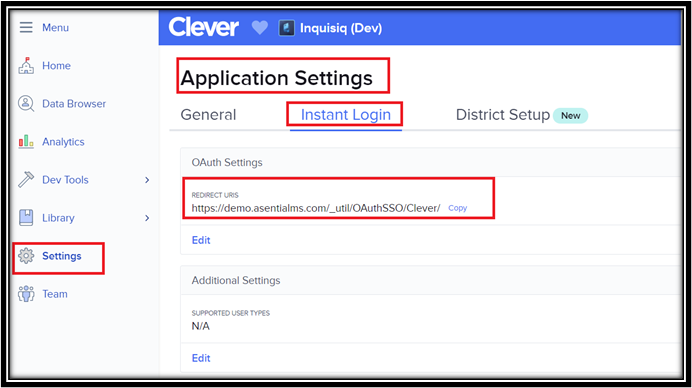
- Now navigate to Settings -> Application Setting -> Instant Login -> Redirect URIs. Paste the redirect URI from your HR Learn portal under the redirect URI.
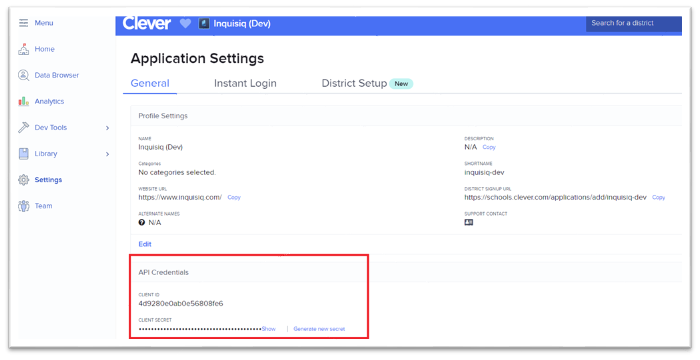
- Then, move to the General tab on the same page to copy the client ID and client key which needs to be added into your HR Learn portal under Clever SSO set-up.
- Once enabled, the new SSO with Clever option will be available on sign-in/register screen on your HR Learn LMS.