
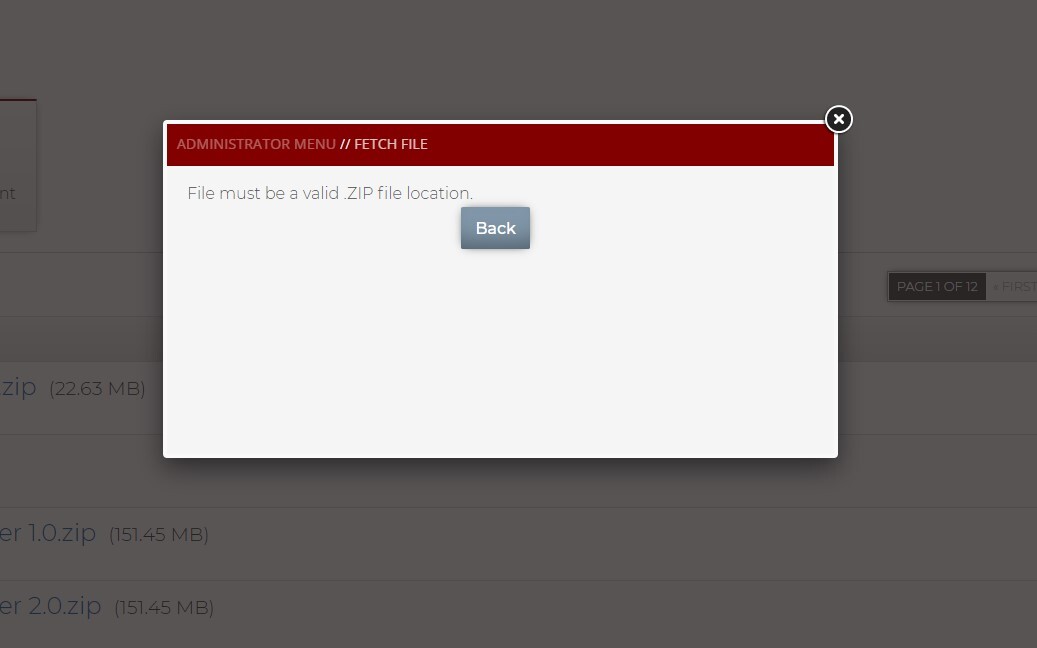
In legacy Inquisiq R3/R4/R5, you can choose to import your SCORM packages via a fetch SCORM method instead of the direct upload. If you are attempting to fetch a SCORM package from DropBox, or another public location and following all instructions to properly upload a SCORM via the fetch upload process and receiving an error, you could be attempting to upload an incorrect file type. If you are trying to upload any file type besides a "zip" file, you will see an error message from the system that reads, "File must be a valid .Zip file location":
When using the fetch SCORM upload process, ensure that you are following the instructions below:
- Upload your file to your Dropbox account.
- Click the “Share” button for your file.
- Click the “Copy link” link.
- In the SCORM Fetch window, in the “Fetch File” section, select “https://” from the drop-down, and paste the link in the box.
- EDIT THE LINK with the following edits…
- Change “https://www.dropbox.com” to “dl.dropboxusercontent.com”
- Delete the “?dl=0” at the end of the link
- Click the “Fetch” button.
To allow fetch to work in the LMS, the file will need to end in "zip". To create a zip file from your course authoring tool, you will want to publish and export your file as a zip file type.